
 COLLAGE EASY / GUIDE
How to Make a Photo Collage: Layout, Crop & Spacing
Make a photo collage step by step: choose photos, set the canvas, arrange a layout, adjust crops and spacing, then check your saved image in Collage Easy.
Read the guide ↗Photo collage maker for iPhone, iPad & Mac
Pick your photos and get layouts that fit them. Add shapes, frames, stickers and words, then share your collage wherever you like.


AI frames
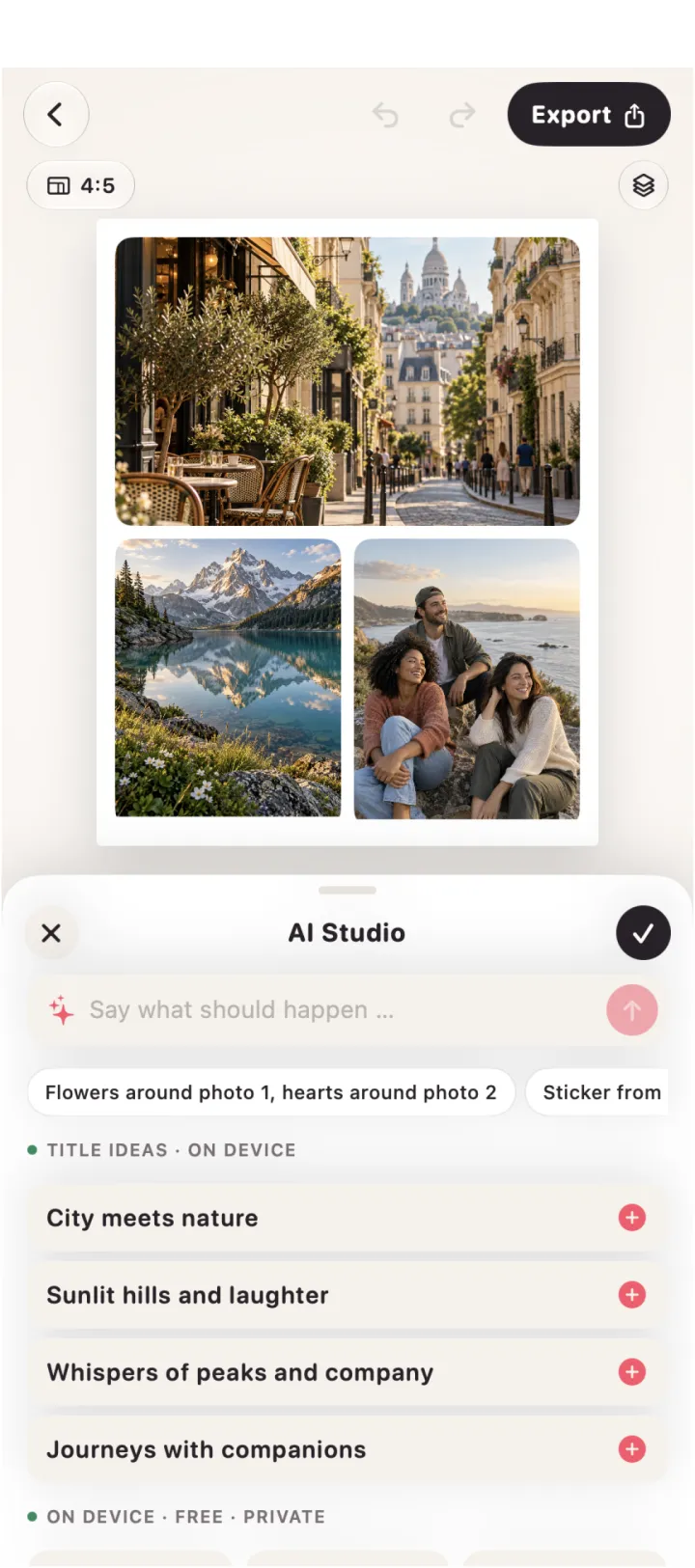
Describe in plain words what should go around which photo. Known motifs like flowers, hearts and stars appear instantly, for free and right on your device.
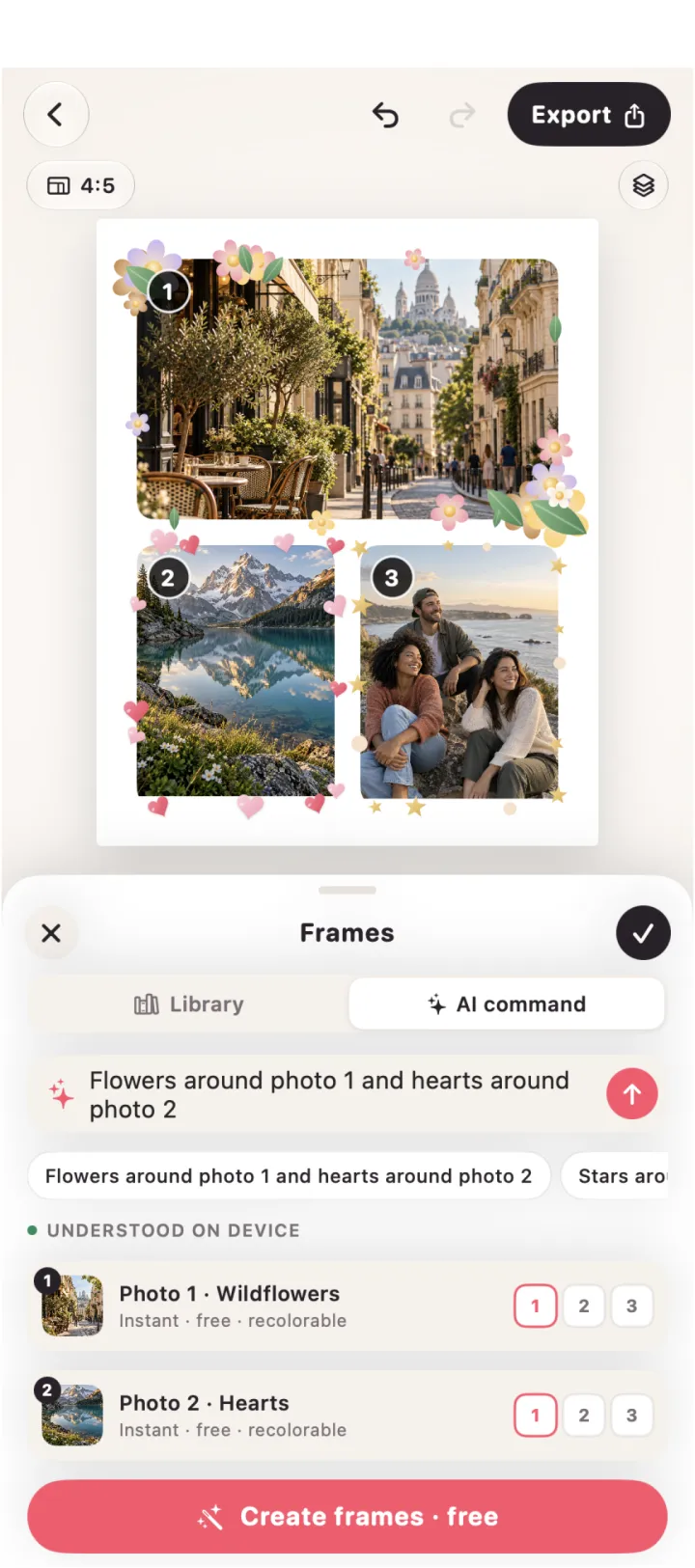
“Flowers around photo 1, hearts around photo 2”

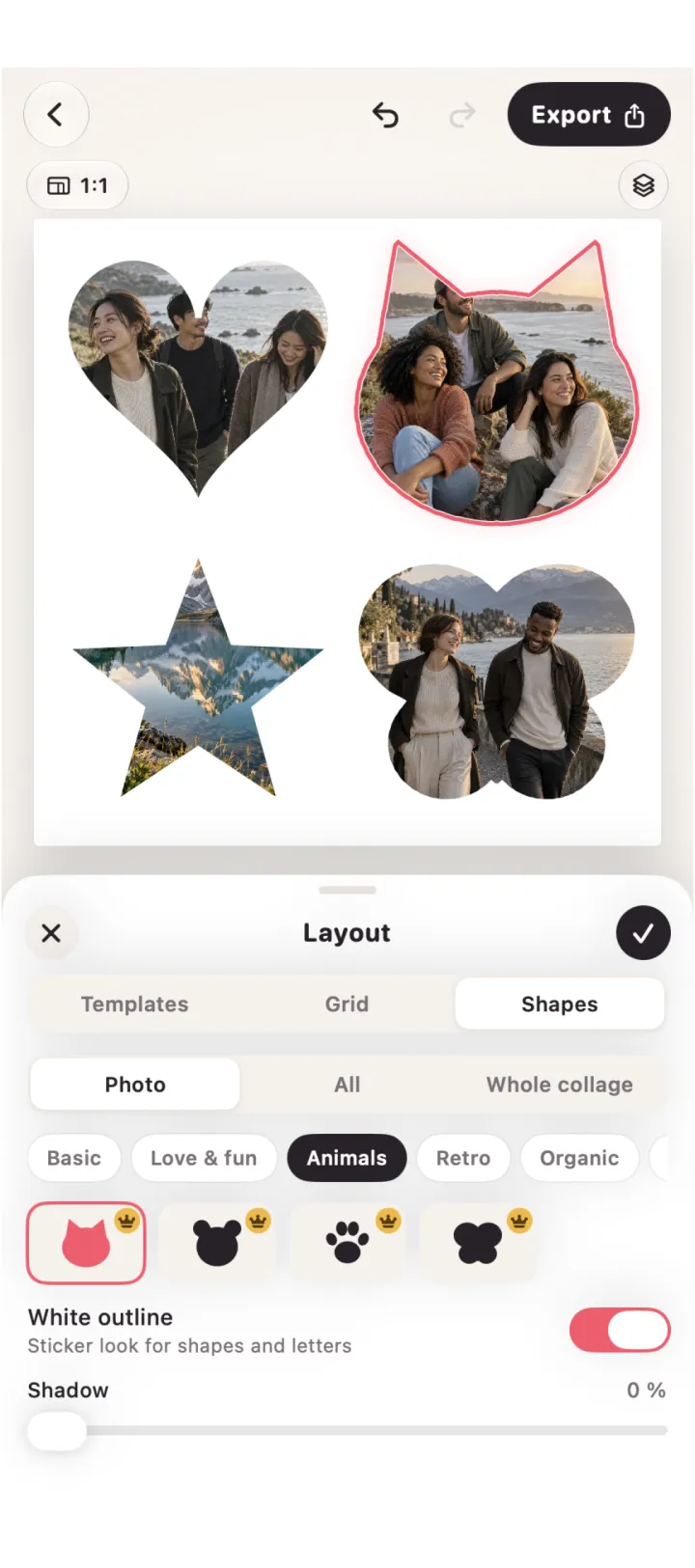
Photo shapes
Turn any photo into a heart, a star, a cat or one of the other shapes, with a white sticker outline if you like.
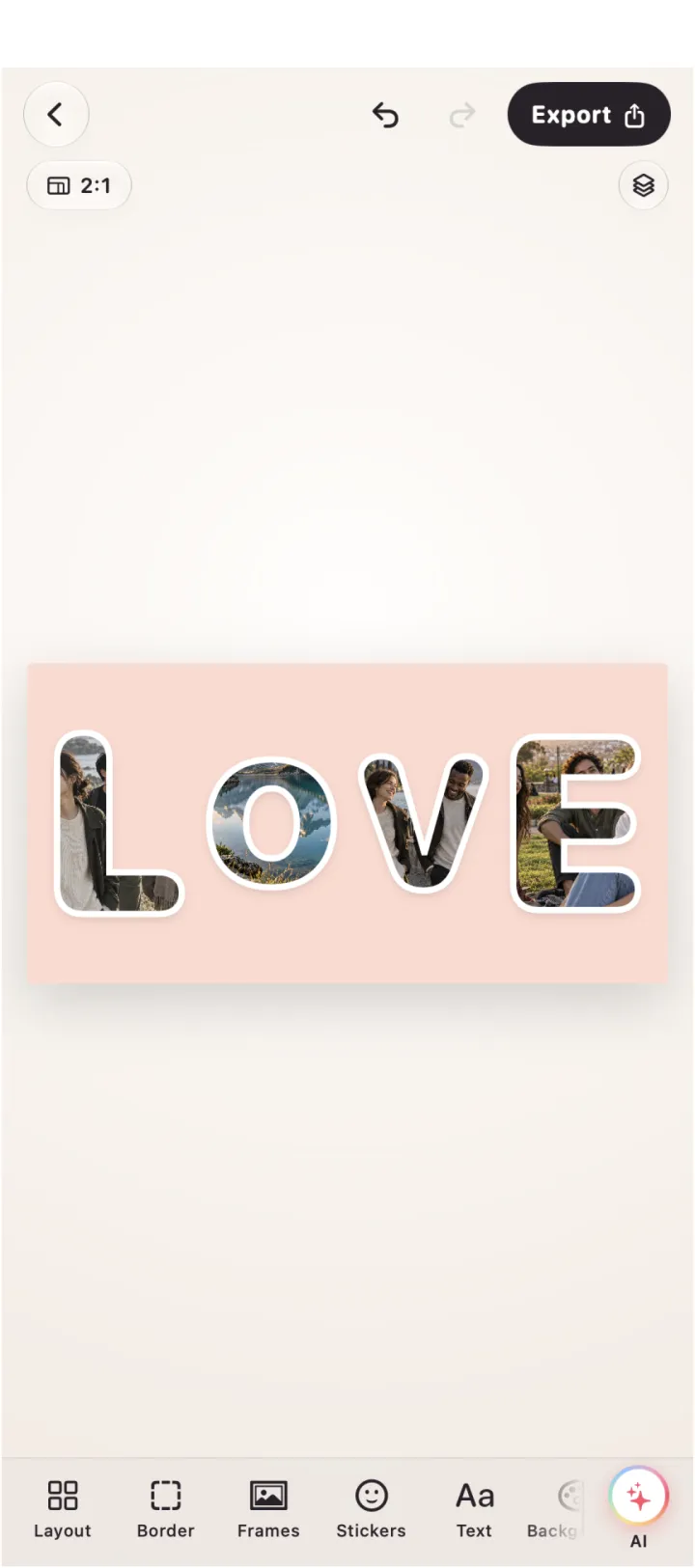
Word collages
Type a name, a date or a city. Every letter becomes its own photo, in ten fonts to choose from.
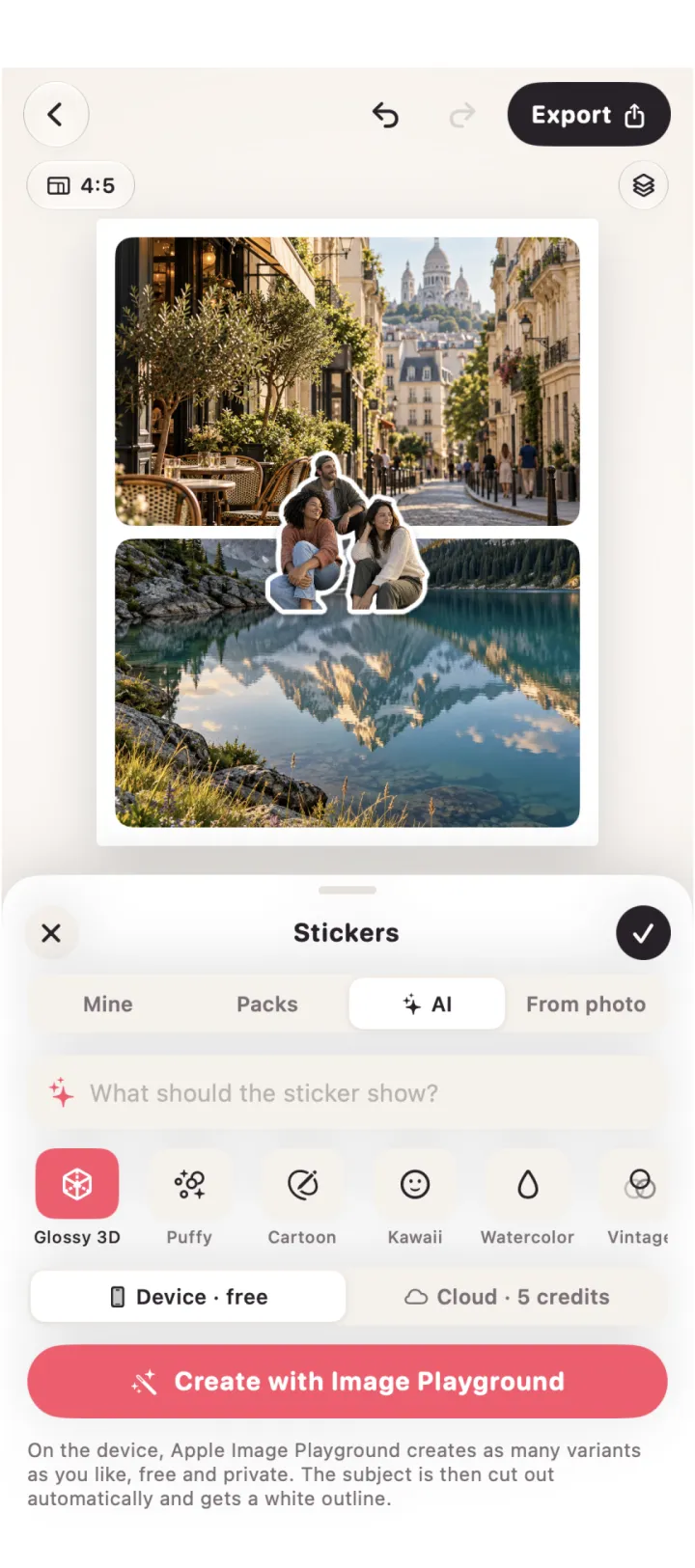
Stickers
Cut people, pets and objects out of your photos on your device and add a white outline, a shadow or a holo shine. On supported devices, create AI stickers with Image Playground.

Screenshots
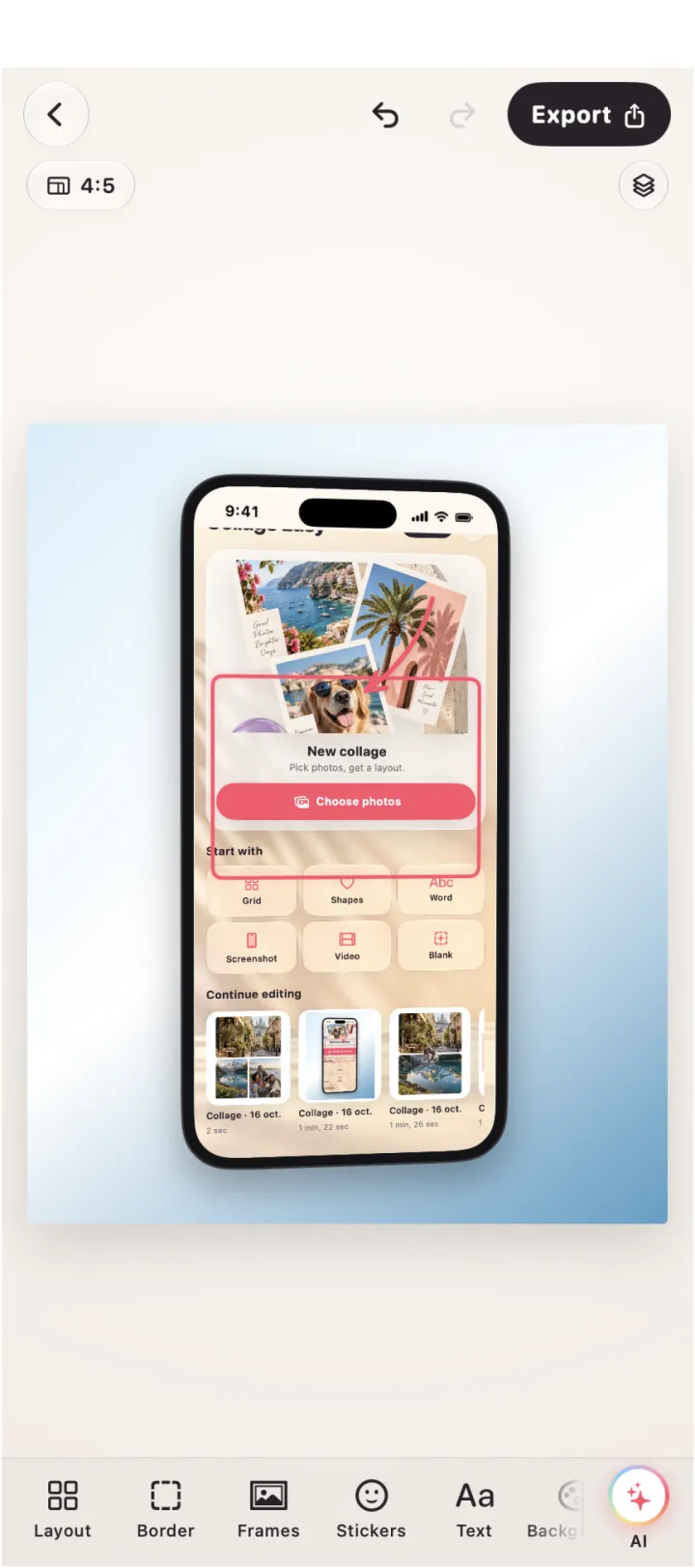
Put a screenshot into an iPhone, iPad, Safari or Mac window frame. Point things out with arrows and boxes, and hide private details with redaction.
AI Studio
Center faces, match the colors of all photos, build a background from their palette and get ideas for a title. AI Studio runs on your device.
Guides
Step-by-step guides for collages, screenshot mockups and video collages.
Photo collagesChoose your photos, start with Smart Layout or a grid, then adjust each crop, white frame and gap on the canvas. Device mockupsChoose a background or your own image, then place a screenshot inside a Safari, iPhone or iPad frame.
 Video collagesAdd clips to a video collage, trim their start and end, adjust speed or volume, mute if needed and export an MP4.All about Collage EasyMake more with your photos · A practical guide to layouts, screenshot mockups and video in Collage Easy.COLLAGE EASY / GUIDE
Make a photo collage step by step: choose photos, set the canvas, arrange a layout, adjust crops and spacing, then check your saved image in Collage Easy.
Read the guide ↗COLLAGE EASY / GUIDEUnderstand the five free AI actions, Pro tools, and device-dependent AI availability before you create.
Read the guide ↗ COLLAGE EASY / GUIDE
Choose patterns, nature scenes, or your own image without sacrificing contrast, focus, or readable edges.
Read the guide ↗COLLAGE EASY / GUIDECombine short clips, trim their starts and ends, adjust speed and volume, and export a readable video collage.
Read the guide ↗COLLAGE EASY / GUIDETurn a raw app or web screenshot into a clear presentation with decorative browser chrome, phone frames, tablet frames, and a controlled background.
Read the guide ↗COLLAGE EASY / GUIDEPlan square, portrait, or landscape work around its destination so the saved collage keeps its subject, spacing, and readability.
Read the guide ↗COLLAGE EASY / GUIDEPut a screenshot inside a clean iPhone frame: import it, pick the frame, choose a background and export. Works on iPhone, iPad and Mac with Collage Easy.
Read the guide ↗COLLAGE EASY / GUIDEMake a vertical 9:16 video collage at 1080 × 1920: pick clips, choose a layout, trim, set speed and volume, keep text in the safe area and export an MP4.
Read the guide ↗COLLAGE EASY / GUIDECompare Instagram collage sizes: 3:4 at 1080 × 1440, 4:5 at 1080 × 1350 and 9:16 Stories. Plan your canvas, crop and export before arranging photos.
Read the guide ↗COLLAGE EASY / GUIDEPut two iPhone photos side by side in one clean image: choose the pair, start a two-tile collage, protect the crop, and export it for sharing.
Read the guide ↗Collage Easy isn't only for your iPhone and iPad. It also runs on Macs with Apple silicon (M1 or later) and macOS 14 or later, so you can build collages and screenshot mockups on a bigger screen. Import photos you've already edited, frame a web screenshot in a Safari-style window, or trim clips for a video collage with more room for every detail. The editor works the same way on every device: pick a layout, fine-tune crops and gaps, choose a background, and export. Download Collage Easy for free from the App Store, with optional Pro for premium tools.
Mac: requires macOS 14.0 or later and a Mac with Apple M1 chip or later.Yes. Collage Easy is free to download, and you can create photo and video collages without a subscription. Optional Pro, available as a subscription or a one-time lifetime purchase, unlocks premium tools and unlimited 4K exports. You also get five free AI actions to try the AI tools.
Yes. Collage Easy runs on iPhone with iOS 17 or later, on iPad with iPadOS 17 or later, and on Macs with Apple silicon (M1 or later) running macOS 14 or later.
Yes. Combine several clips in one collage, trim the start and end of each clip, adjust speed and volume or mute a clip, and export the result as an MP4.
No. Browser windows and device frames are decorative frames around your screenshot. They make a screenshot easier to understand, but they never open a web page or change the screenshot itself.
Standard editing such as layouts, filters, text, stickers, frame colours and export runs on your device. Only if you use the optional AI image editing are the selected image and your prompt sent to an AI service to create the edit. Details are in our privacy policy.
Download Collage Easy for free. Upgrade to Pro whenever you want more.
Everything you need for your first collages.
For people who make collages often. Eligible users can try it free for 3 days.